At a glance
Based on the reader question: Is there a way to turn my smartphone into a simpler, distraction-free device, without buying new hardware or paying for another app?
- Apple's Assistive Access doubles as the best free dumbphone on the market and it's sitting inside your existing iPhone.
- Unlike a standard screen-time limit, leaving browsers off your allowed-apps list doesn't just restrict the internet, but removes it entirely, closing the workarounds that make most self-imposed limits easy to ignore.
- A five-minute setup, built around a handful of core apps and a passcode only you know, gets you (or a teenager easing into phone ownership) a device that's reachable but never endlessly available.
Introduction
I love this trick. Inside every iPhone is a dumbphone you can activate to give you, or a loved one, like a teenager easing their way into phone ownership, an ultra-simple, minimalist, and hyper-focused device.
There’s been a rise in retro and minimalist tech. People are unbundling their smartphones and retreating to MP3 players, digital cameras, Casio watches, and trying to bottle the peace of the early 2000s when technology was cool, quiet, and didn’t weigh on us 24/7.
Other people are trying to have their cake and eat it, using apps like Dumb Phone for iPhone and Minimalist Phone for Android. While they calm the compulsion to use your phone, they charge for the privilege.
How to build you're own dumbphone for free is below, but I don’t want this to be a moral panic piece.
Unfortunately, one of the leading voices in the debate around social media and teenage mental health outcomes is Jonathan Haidt, author of The Anxious Generation: How the Great Rewiring of Childhood Is Causing an Epidemic of Mental Illness.
While youth mental health is something that deserves attention, this book is rife with unsubstantiated points, illogical arguments, and studies that follow flawed methodologies.
If you want a better overview of the research and impact of social media, I’d recommend the If Books Could Kill podcast.
They dissect and debunk the merits and warts of popular books, like Sapiens and Atomic Habits – and have a two-hour special on The Anxious Generation.
Having consumed both the book and the podcast, the podcast is a much better use of your time.
Building your own dumbphone
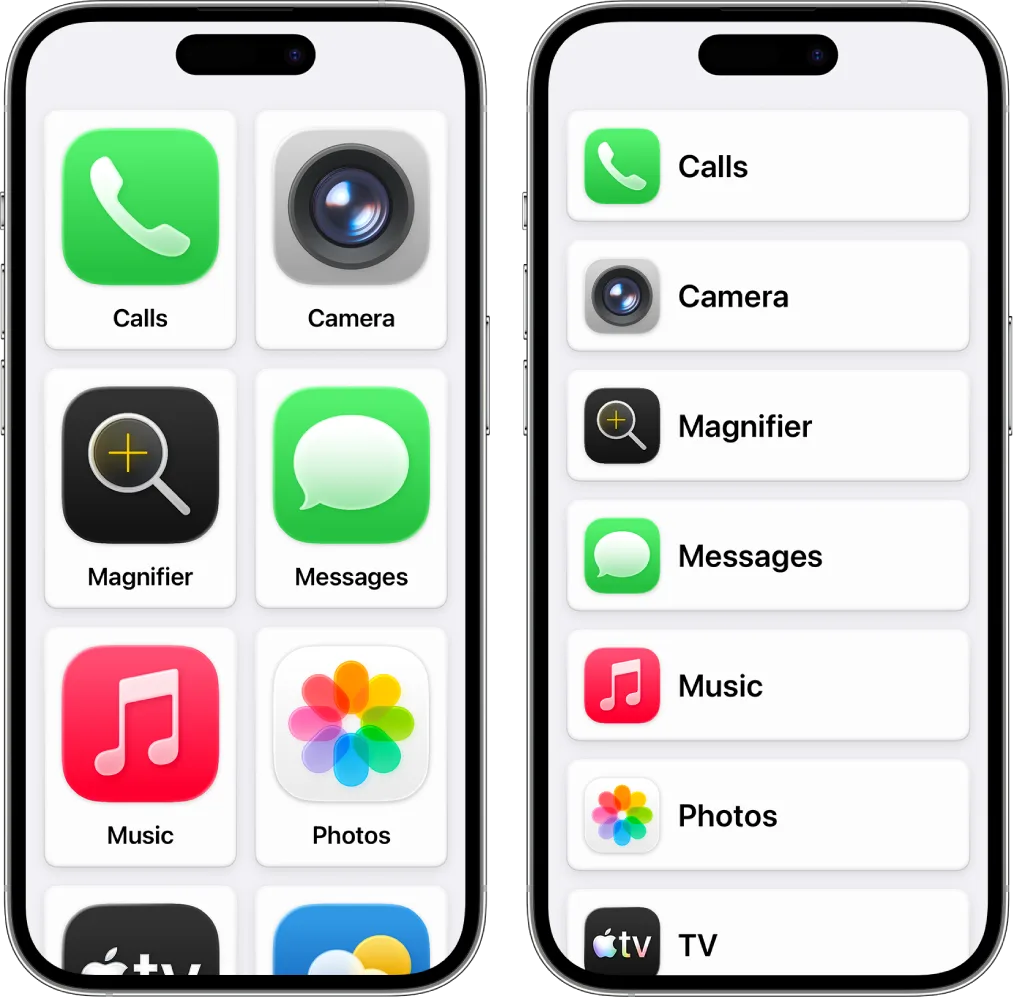
The feature you want is called Assistive Access. Apple built it for cognitive disabilities, so it is tucked inside the Accessibility menu. It happens to be the best dumbphone currently on the market, and is already sitting in your pocket.
Here's how to find it and set it up.
Find it: Open Settings, then Accessibility; keep scrolling until you reach the bottom of the list. Tap Assistive Access, Set Up Assistive Access, then Continue.
Pick your layout: You'll be asked to choose between rows or a grid. Go with the grid, since the tiles are larger and easier to use.
Choose your apps: Tap the green plus icon beside anything you want to keep. This is the step that makes Assistive Access genuinely better than a standard screen-time limit. Leave Safari, Chrome, and every other browser off the list. This prevents internet browsing entirely. A friend can send a link over text, and it will sit there as plain, dead text, because there's no browser left to open it in. Screen-time limits, by contrast, tend to have a workaround if you look hard enough.
Set the terms: For the apps that do reach outward, Messages and Calls being the obvious ones, you get to decide who can actually get through rather than simply switching the app on or off. Choose whether the person can be reached by everyone, only their existing contacts, or a shortlist you've picked out yourself, and go further still if you like, turning the keypad on or off, hiding the time from the lock screen, disabling the mute switch, or quietening notifications altogether.
Lock it with a passcode: Once you're satisfied with the setup, you'll choose a four-digit Assistive Access passcode. A triple-click of the side button, or the Home button on older phones, brings the prompt back up and returns the device to standard iOS. Without that code, though, there's no settings menu that will undo the minimal setup.
Recommend starting point
A sensible starting points tends to be something like Calls, Messages, Maps, Camera, Photos, and Music, enough for a child, a parent, or a teenager easing into their first phone to be reachable and never lost, without being endlessly available to everything else. You can always add Safari or Spotify later if it makes sense.
Downsides
The mode runs a little slower than standard iOS, it doesn't recognise whatever screen-time limits you'd already set up, so anything you do allow through still needs watching, and you can't turn the phone off entirely without first stepping back out of the mode. I think the trade-offs are worth it.